Overview
With the U.S. government discontinuing the minting of pennies, we’ve created a process to round invoice totals, up or down, to the nearest denomination.
Requirements
- The user creating these items needs full inventory setup permissions.
Setting Up a Type “O” Rounding Up Inventory Item
This process utilizes two Type “O” inventory items, one for .01 and one for -.01, with a default sales quantity of 1. This allows you to set up a positive or negative item to round the total amount of the invoice.
- Log in to ISI Central via https://www.isicentral.net
- Click on the “Setups” icon.
- Select “Inventory” from the left-hand menu.
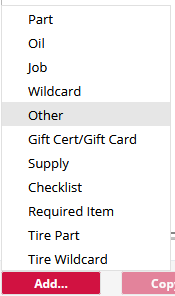
- In the bottom left of the main screen, hover your mouse over the “Add…” button, and click on “Other”.

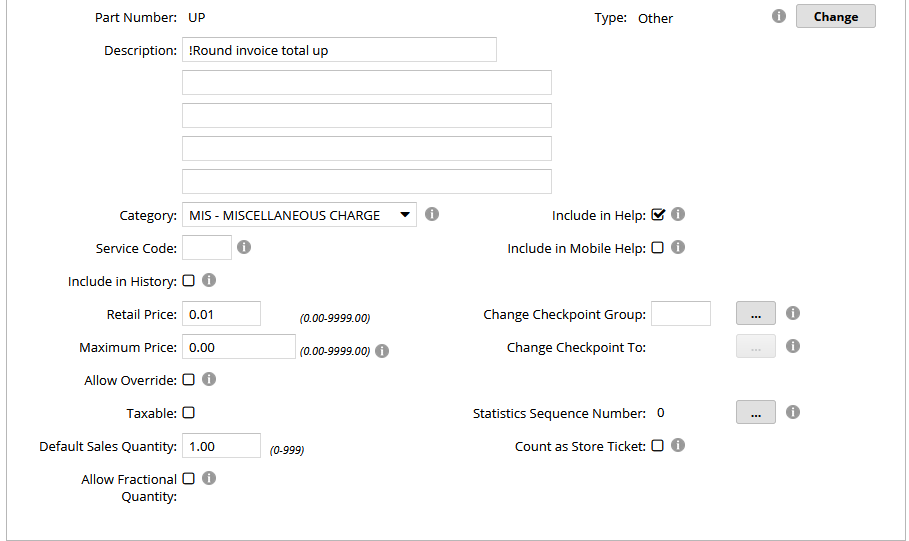
- The “Part Number” can be input as any value that makes sense. In our example, we’ll name the inventory item “UP” to be rounded up by a penny.
- The description is printed on the invoice. You can leave this field blank, add a description, or add a description for the technicians to see, but not print by entering an exclamation point before the description, as shown below.


- In our example, we will use “MIS” as the category. If you prefer to assign these items to a different category, you may do so at your discretion.
- “Include in Help” will default to checked. This will show the item in the [F1] pop-up menu in Classic LubeSoft, or within a drop down menu in LubeSoft Express. Unchecking this will require the technicians to know the part number to add it to a work order.
- Uncheck the “Include in History” checkbox.
- Enter “.01” for the “Retail Price”.
- Consult with your state laws to identify whether “Taxable” should be checked or not.
Note: If “Taxable” is checked, due to rounding rules, there is a chance that adding or subtracting 1 cent could adjust the total invoice by 2 cents.
- Enter “1” for the “Default Sales Quantity”.
- Uncheck “Allow Fractional Quantity”.

- At the bottom of this page, choose “Make Available Now” if you want the part to download to stores within the next 5 minutes or click “Save” for the item to download after the store is closed for the current day.
Setting Up a Type “O” Rounding Down Inventory Item
- Log in to ISI Central via https://www.isicentral.net
- Click on the “Setups” icon.
- Select “Inventory” from the left-hand menu.
- In the bottom left of the main screen, hover your mouse over the “Add…” button, and click on “Other”.

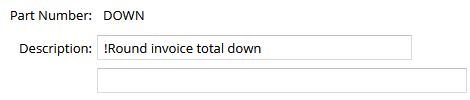
- The “Part Number” can be input as any value that makes sense. In our example, we’ll name the inventory item “DOWN” to be rounded down by a penny.
- The description is printed on the invoice. You can leave this field blank, add a description, or add a description for the technicians to see, but not print by entering an exclamation point before the description, as shown below.

- In our example, we will use “MIS” as the category. If you prefer to assign these items to a different category, you may do so at your discretion.
- “Include in Help” will default to checked. This will show the item in the [F1] pop-up menu in Classic LubeSoft, or within a drop down menu in LubeSoft Express. Unchecking this will require the technicians to know the part number to add it to a work order.
- Uncheck the “Include in History” checkbox.
- Enter “.01” for the “Retail Price”.
- Consult with your state laws to identify whether “Taxable” should be checked or not.
Note: If “Taxable” is checked, due to rounding rules, there is a chance that adding or subtracting 1 cent could adjust the total invoice by 2 cents.
- Enter “1” for the “Default Sales Quantity”.
- Uncheck “Allow Fractional Quantity”.

- At the bottom of this page, choose “Make Available Now” if you want the part to download to stores within the next 5 minutes or click “Save” for the item to download after the store is closed for the current day.