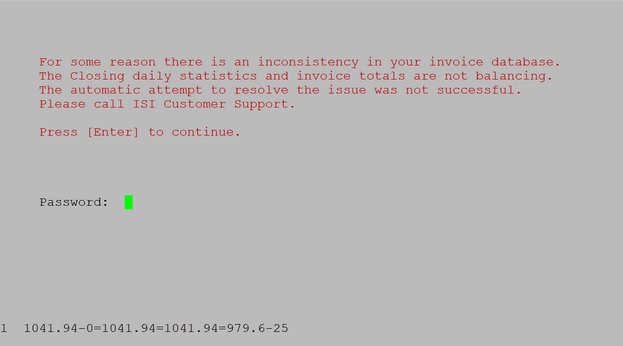
As part of the closing process, LubeSoft checks the invoice values in its databases to ensure that they properly align. If they do not, you will be directed a screen similar to this as you begin the closing process:
Resolving the Inconsistency
Print a Revenue Reconciliation Report. Look for any invoices assigned to bay 0. If you find any, void and reenter the invoice(s). Close the store to see if that has resolved the issue and allows you to enter your till amounts. If not, follow the steps below:
The example above shows the system has calculated the total invoices for the day at $1041.94 less any gift cards redeemed. The values are the same until the last number, which shows the amount received in the cash till. That value is $979.60 minus $25.00 (the amount of gift cards sold). The difference is $87.34. If you have an invoice for this amount from today – void and reenter that ticket. You can use the Transaction Report (Summary = N) to look at your day’s invoices.