Use the following instructions to correct the store opening till count.
Note: Do not invoice work orders in LubeSoft during this process.
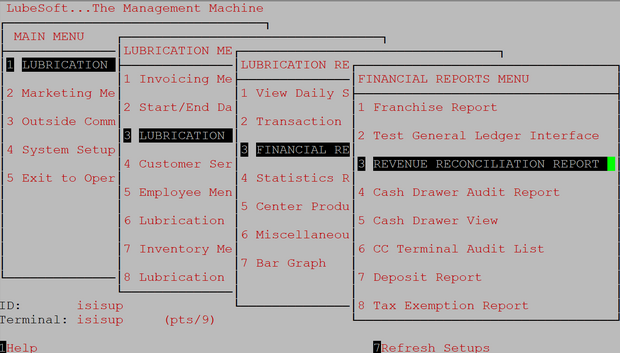
- Manually print the Revenue Reconciliation Report (menu 1-3-3-3) to view the closing till information.
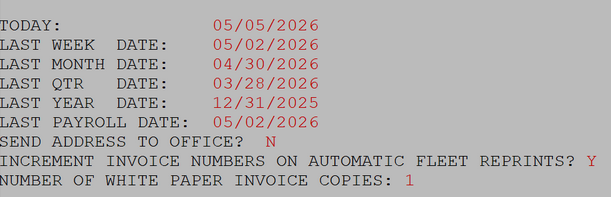
- Access the Center Control File (menu 1-6-1-1) and press F7 (next screen) until you reach screen 8 of 8.
- Change the “Today Date” to the date you want to correct the opening till count.
- Press F4 (save).
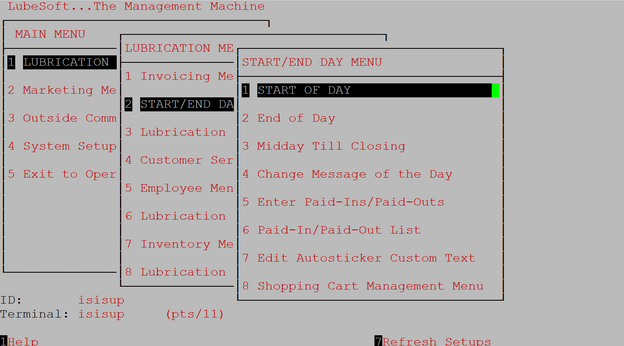
- Open the store for the date that needs the opening till correction by accessing Start of Day (menu 1-2-1).
- Enter the corrected opening till count.
- Close the store for that date by accessing End of Day (menu 1-2-2) and enter the correct closing till count based on the Revenue Reconciliation Report.
- Wait for the store closing to finish. You may remove the USB backup drive from the main computer to skip running the complete backup to save time. This will fail the backup.
- Access the Center Control File (menu 1-6-1-1) and press F7 (next screen) until you reach screen 8 of 8.
- Change the “Today Date” field to the current date.
- Press F4 (save).
- Plug the USB back into the computer if you removed it in step 8.
- You may resume invoicing customers for the current day.