Overview
Users often want to move reports from the LubeSoft Reports repository to their My Reports, Chain Reports, or other created folders for ease of access or to share the report with others in their organization. This allows you to have a shortlist of reports often accessed in one folder, rather than navigating the various sub-directories of the general report repository.
Copying a Report
- Log into your ISI Central Reporting account via https://www.isicentral.net/
- Click on the “Reporting” icon from the home page.
- From the report repository tree on the left side of the screen, expand the folder(s) to find the report you want to copy to another folder. In the below example, we are using the Fleet Sales report.
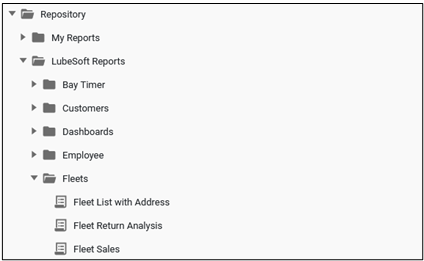
- Click on the name of the report within the report repository tree to access the report selection screen.
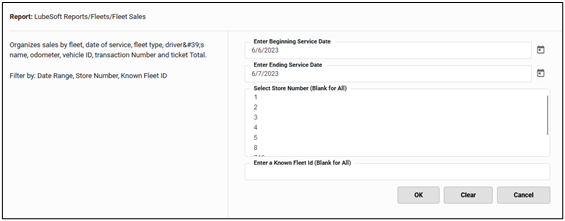
- Run the report for a desired date range and store number(s). If the intent is to save the report to act like a normally selected report within ISI Central, a single day and single store is recommended. We need to display the report to access the tools needed to save the report to another folder.
- Once the report is displayed, click on the “Save As” icon on the top icon bar.

- The “Save As” dialog box will display several options. The most common method of saving a report is displayed within the image below. The changes that may need to be made are:
- Ensure the “Folder” dropdown box has the folder selected where you want to save the report. Most common folder destinations are “My Reports” or “Chain Reports”.
- Under the “Options” section, place the radio button next to “Save as Live Report”.
- Using the “Save as Archived Report” selection will save the report in its current form using the date, store, or other pre-determined parameters, and will display the report exactly as it’s shown on the screen at the time of saving using the selected format (CSV, PDF, etc.). This option does not allow you to select dates, store(s), or any other report parameters. It is strictly for saving a generated report for archival purposes.
- Using the “Save Parameters Only” selection will save the report in its current form using the date, store, or other pre-determined parameters, and will display the report exactly as it’s shown on the screen at the time of saving. This option does not allow you to select dates, store(s), or any other report parameters. It is strictly for saving a generated report and displayed within ISI Central Reporting.
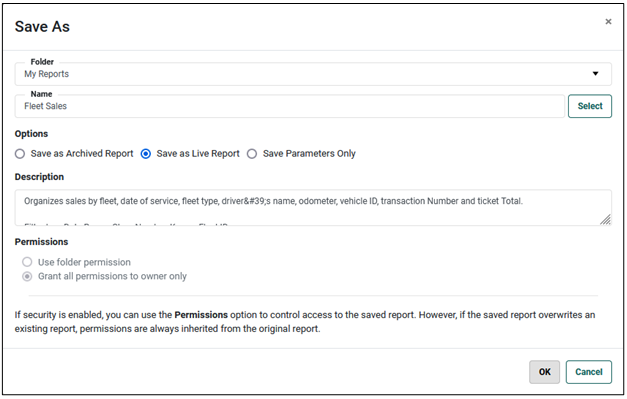
- Press the “OK” button to save the report. The report is now available under the selected folder. In the above example, the report will be available under the “My Reports” folder.