Purpose of Document
Opt-in/out allows stores with LubeSoft and ISI Central Setups to select whether to include specific customer email addresses, phone numbers, and vehicle service history in the marketing exports sent at the end of the day. Also, stores with LubeSoft and ISI Central Setups can select whether or not to allow LubeSoft to send invoices to specific email addresses.
Requirements
- LubeSoft
- ISI Central Setups
- ISI Central National Vehicle Sharing
- User with Opt-In/Out Manager permissions
Activation
Opt-In/Out can only be activated in ISI Central Setups.
- Login to ISI Central (isicentral.net).
- Click on “Setups”.
- Click “Center Control File” on the left side of the screen.
- Select a store.
- Scroll down until you come to a box labeled “Customer Opt In/Out Methodology”.

- Flag the “Activate Opt In/Out” box. All flags will be set to “Opt Out” by default.
- Select “Opt In” or “Opt Out” based on the business need (see below).
- Click the “Save” button to save the settings.
- There is a new “Opt In/Out” option on the left side of the screen for managing opt in/out customers.
- Opt-In means that the opt-in/out manager will need to maintain a list of customers that wish to opt-in based on the customer Opt-In/Out Methodology Center Control File settings. (Phone, Email, Email Invoice, Vehicle, CARFAX). Choosing this option will flag all customers as opt-out unless placed on this list.
- Opt-Out means that the opt-in/out manager will need to maintain a list of customers that wish to opt-out based on the selections in the Customer Opt-In/Out Methodology Center Control File settings (Phone, Email, Email Invoice, Vehicle, CARFAX). Choosing this option will flag all customers as opt-in unless placed on this list.
Giving a User Opt-in/Out Manager Permissions
In order to use the Opt-in/Out feature, an ISI Central user needs to have the Opt-In/Out Manager permissions granted to their user:
- Navigate to the “User” menu in ISI Central Setups.
- Search for the user needing opt-in/out permissions.
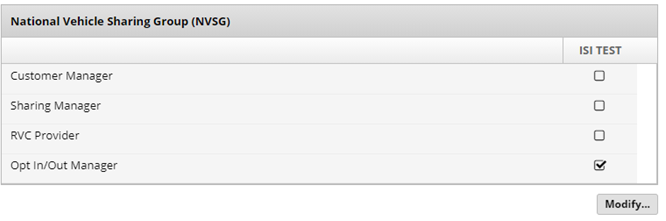
- Once you are in the user setup, scroll down to the “National Vehicle Sharing Group (NVSG)” box.
- Click on the “Modify…” button and locate the NVSG the user needs access to.
- Once they’ve been associated with the NVGS, click on the check box to the right of “Opt In/Out Manager”.
- The user now has access to the “Opt In/Out” Menu under Vehicle Sharing.
Process Flow
A customer gets an oil change at your lube shop. The customer starts getting marketing texts/phone calls or emails and decides that they want to opt-out of receiving marketing contact.
- The customer contacts the store’s corporate office, or whoever manages the Opt-In/Out list and lets them know not to send them marketing materials.
- The store’s Opt-In/Out Manager logs into ISI Central Setups and opt-out the customer’s email address and phone number. If the customer also requested not to share his data with third parties, the Opt-In/Out Manager would also opt-out of the customer’s unique vehicle ID.
- This information is sent to LubeSoft and saved to the database.
Note: If the customer gets a new phone number, he will have to tell the store to opt-out that phone number as well. There is no direct link between a customer record and their phone number or email address. If multiple vehicles have the same phone number and it is opt-out, it will be excluded from the marketing extract for all of them.
Usage/FAQ
- How do stores specify an email, phone number, or vehicle to exclude or include?
- It can only be done from “Opt In/Out” ISI Central Setups. It cannot be managed by LubeSoft. There are no menu options or reports in LubeSoft for this feature.
- How does this feature affect LubeSoft?
- When creating some exports at the End of Day (EOD), some data will be automatically excluded based on data sent from ISI Central Setups (see the Marketing Extract List at the end of the doc).
- For example, assume joe.customer@gmail.com is set to be opt-out. The customer goes back to the lube shop for an oil change. The invoice is cashed out normally. At the EOD, when the marketing extract is created, joe.customer@ints.com is automatically blanked out of the extract file. The other data remains as long as it is not opt-out.
- If the customer’s phone number, (503) 555-1234, is opt-out, it will be blanked out of the marketing extract too, regardless of whether it is in the home, cell, work, or other phone field.
- If the customer’s vehicle’s unique ID (12345678901234) is opt-out of CARFAX, then the entire record for that ID will not be included in the CARFAX extract.
- If the customer’s vehicle’s unique ID (12345678901234) is opt-out of marketing, then the entire record for that ID will not be included in any marketing extract.
- ISI Central provides vehicles with unique IDs. If a vehicle does not have a unique ID when the EOD is run, the marketing extracts are not created and will try again the next night. This should only happen if LubeSoft cannot communicate with ISI Central, such as when the Internet is down.
- During invoicing, if an email address is opt-out of invoice emails, we display a message and give the user the option to either change the delivery method or the email address. There is no way to bypass it and email an invoice to an email address that has been opt-out. Opting an email address out of marketing has nothing to do with opt-out of invoice emails.
- The customer must go through the same process to give permission to send invoices to that email address as he did to opt-out. It cannot be done from LubeSoft.
Using the Opt-In/Out menu
Within the Opt-In/Out menu, you can do a few things. You can search using multiple parameters, to view customers that have been Opt-In/Out, and the information associated with them. You can also Add new Opt-In/Out records.
Adding a new Opt-In/Out record:
- Click on “Add…” in the bottom left.
- You’ll be present to select the “Type”.
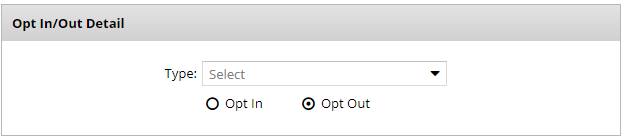
- By selecting each different “Type” a new field will appear that associates with that type.
- Phone will prompt you to enter the customer’s phone number. You can type this in with or without dashes, and the field will correct itself upon leaving it to format properly.
- Email will prompt you to enter the customer’s email address. There are checks to ensure it is a valid email address, with @ and .com.
- Email Invoice will prompt again for the customer’s email. Same checks apply.
- Vehicle will prompt you to enter the customer’s vehicle ID.
- CARFAX will prompt you to enter the customer’s vehicle ID.
- Once you’ve typed in the required information, you can check to Opt-In, or Opt-Out, depending on the store’s methodology chosen.
- Click “Save” at the bottom, and the changes will apply to the store during EOD.