Overview
This document covers the creation of a promotion and assigning it to a Single Use campaign ID. This is for assisting a customer who is working with the third party marketing company “Welcomemat”. You as the customer will be provided with the promotion code parameters and the campaign ID by Welcomemat.
- From a web browser, navigate to isicentral.net and log in. If you do not have login credentials, contact a manager or the owner.
- Once logged in, click on the “Setups” icon.

- On the left navigation menu, click on “Promotion”.

- In the bottom left corner of the promotion screen, click on the “Add…” button.

- Select your store from the drop down.
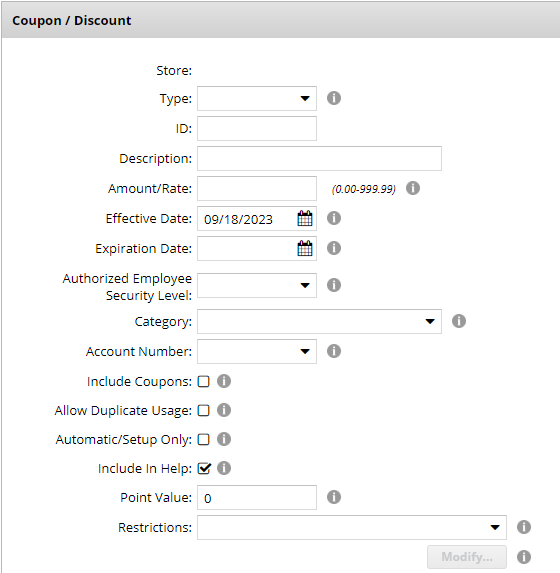
- Fill out the applicable information for the coupon or discount.
- Scroll down to the “One Time Use Promotion” section and place a check in the “ISI Central Validation” checkbox.

- Type in the Campaign ID or select it from the drop down list.
- The “Validation Override Security” field will be a security level 0-9. This relates to the employee that can override the Single Use Code if it fails to validate. Zero will allow any one to override.
- Place a check in the “Make Available Now” checkbox. This will cause the new Coupon/Discount download within the next 5 minutes to the store.

- Click the “Save” button.